|
| Introduction to the EarthLink VPN Policy Manager |
|
Policy Manager is the brains of your managed VPN service!
- Web-based format allows administrators to manage company policies from anywhere
- Ability to implement policies at company, group, and user levels
- Configure file shares for users
- Configure email access for users
- Configure antispyware, firewall protection, and antivirus
|
| Navigating the Policy Manager |
|
Policy Manager functions are grouped into three main areas:

- Users and Groups: From here, you set up new users, organize them into groups, and change passwords.
- Policies: Select all of your security policies, user preferences, and configuration options.
- Reports: This section contains comprehensive real-time and historical reports and logs.
|
| Users and Groups |
|
Know which level you're managing
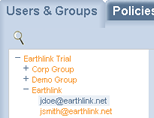
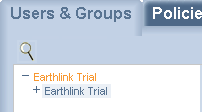
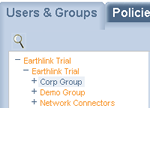
There are three levels within the Policy Manager: Company, Group, and User.
These levels are shown in the expandable tree in the left navigation pane of the Policy Manager.
|
| OEM Level |
| OEM Level
This level is the highest level of you
network. Here you will be able to manage company applications,
manage you subnet, manage your DNS, and configure
certain provisioned aspects of you vpn.

|
| Company Level |
|
The Company level is the first of the policy-controlled levels.
Here you can implement policies for WebLink and VPNLink users in your company. All policies applied at this level
will automatically be inherited by every user in the Policy Manager.
|
| Group Level |
| The Group level provides a quick, easy
way to manage policies for similar classes of users. Policies applied at this level
will override any set at the Company level.
|
| User Level |
| To customize the service for an individual user, simply
select that user in the tree. All of the policies, including endpoint security, resource setup, and application distribution are customizable for each user. This level overrides
all levels above it.
|
| Policies Tab |
|
The Policies tab is where the true power of the Policy Manager resides. Here, you can adjust every aspect of the EarthLink VPN experience for your users. Policies are organized into 4 major categories: Administrative, Configuration, Endpoint Security, and Productivity. Each policy has an icon that denotes whether it applies to VPNLink, WebLink, or both.
|
| Administrative Policies |
|
The first section of the Policies tab contains policies for administering the system. It includes policies for:
- Notifications (ex: Outages, Updates)
- Remote Administration
- Software Version Control
|
|
|
| Configuration Policies |
|
In the Configuration section, you can manage policies that define how the system is configured, including:
- Authentication (Standard, NTLM, Radius)
- Network Resources or File Shares
- Connection- Here you can set up automatic reconnect for your users as well as idle timeouts.
- Permission Control- These policies specify whether a user can access VPNLink or WebLink and which Web browsers can be used to access the service. It also lets you set intranet and file permission restrictions.
|
| Endpoint Security Policies |
|
In the Endpoint Security section, you can manage policies that help secure the users' computers, including:
- Antispyware- You can require that a spyware scan is completed during sign on and that antispyware definitions are up-to-date.
- Antivirus- You can require that users' computers have up-to-date antivirus software installed and running. This section also lets you configure antivirus program distribution for users who do not have antivirus software.
- Critical Updates- You can require that critical updates and service packs have been downloaded and installed for the operating system and other products.
- Firewall- This policy can be configured to lock down users' PCs to prevent Internet worm attacks and hack attempts. It can also restrict users' access to network resources.
- Connection Reason- You can create audit trails for users by requiring them to provide a reason for signing in to VPNLink.
|
| Application Distribution |
|
Integrated
Application Distribution lets you install
work-approved software on your computer.
The applications listed in the Application
Installation window are authorized by your organization for
distribution to remote users.
If your organization requires the installation
of an application (e.g., antivirus software), you will not be
permitted to sign on to your organization's network until the
application is installed and
operating. |
| Productivity Policies |
|
In the Productivity section, you can manage policies that help users' get the most of the VPN experience, including:
- Microsoft Outlook- VPNLink and WebLink can automatically reconfigure Outlook to function just as it does on a user's office PC, even if the user is at home.
- Desktop- This section gives you the ability to add shortcuts to users' desktops and change their desktop wallpaper or color when they sign in to VPNLink.
- Applications- Set up your client/server applications to work via VPNLink or WebLink.
- Remote Desktop- You can allow users to set up and run the Remote Desktop Agent and define office PCs that multiple users can share remotely.
|
| WebLink Policies |
|
In the WebLink policies section, you can manage policies that only apply to WebLink, including:
- Enhanced Mode Extensions- Extend antivirus enforcement, application distribution, and antispyware to the WebLink interface.
- Applications- Set up your client/server applications to work via WebLink.
- Email- Allow access to Web-based email through WebLink.
- Permission Control- These policies specify whether a user can access WebLink and which Web browsers can be used to access the service. It also lets you set intranet and file permission restrictions.
- Remote Desktop- You can allow users to set up and run the Remote Desktop Agent and define office PCs that multiple users can share remotely.
|
| Application Distribution |
|
Integrated
Application Distribution lets you install
work-approved software on your computer.
The applications listed in the Application
Installation window are authorized by your organization for
distribution to remote users.
If your organization requires the installation
of an application (e.g., antivirus software), you will not be
permitted to sign on to your organization's network until the
application is installed and
operating. |
| Application Distribution |
|
Integrated
Application Distribution lets you install
work-approved software on your computer.
The applications listed in the Application
Installation window are authorized by your organization for
distribution to remote users.
If your organization requires the installation
of an application (e.g., antivirus software), you will not be
permitted to sign on to your organization's network until the
application is installed and
operating. |
| Antivirus Protection |
|
Stay safe with comprehensive antivirus
protection
Organizations typically require antivirus
protection for remote users. VPNLink includes comprehensive
integrated antivirus protection.
Support for multiple antivirus
products
If your users already have supported antivirus
software, we will automatically recognize and integrate it
into our security infrastructure. We support antivirus
products from McAfee, Norton, and
Trend.
If your users do not have antivirus software
installed on their computers or you wish to update the antivirus
software that they do have, we provide McAfee VirusScan
at no additional cost for use with the service through the
Application Distribution feature.
You can require a specific
antivirus program
As an administrator, you can define the antivirus software that users must be running before they can access the organization's network. |
| Firewall Protection |
|
Automatic Protection
VPNLink includes an integrated firewall on
users' computers that operates when they are connected to your
organization's network.
No user configuration necessary
Since you define the rules by
which the firewall operates, users do not need to configure any
settings or otherwise operate the firewall software.
Co-exists with Personal Firewall
software
The VPNLink firewall is designed to peacefully
co-exist with other personal firewall software, such as
ZoneAlarm or Windows XP's Internet Connection Firewall. When
users sign off, the VPNLink firewall goes into an inactive mode
and does not interfere with other personal firewalls on their
systems. Some personal firewalls, such as the popular ZoneAlarm
firewall, may require special configuration instructions in
order to operate correctly with the VPNLink firewall. Please
refer to the Help file for specific configuration
information. |
| The Support Center |
|
Network Access Restrictions
On occasion, you may find that your remote
access has been restricted due to a violation of a remote
access policy. If so, you will be presented with the Support
Center, which explains and provides instructions for resolving
the problem.
Example: If your company requires
antivirus software, your access will be restricted if your
antivirus software is not detected.
While you are in the Support Center, VPNLink
maintains a support connection with our network, so our
personnel can help you troubleshoot problems and re-establish
access. |
| Getting Help |
|
If you have any questions about using
EarthLink VPN, please use one of the EarthLink support options listed below.
Note: To ensure the safety of your
company's network, all support requests or questions must come
from your company's VPN administrator or the billing contact
on file with EarthLink.
|
|
Customer Service |
| 1-888-698-4357 |
Mon-Fri 8am to
8pm(EST) |
| Technical
Support |
| 1-888-698-4357 |
7 days/week
24
hours/day | | |
|